Step 1: Review the relevant Software Upgrade Procedure, Module 4 - Support Procedures.
Step 2: As stated in each of the Support Procedures, review the current software states on the shelf using the following CLI commands. From these commands, check the failure reason with the table provided in the SUP.
show software
To target specific sections of the above output.
show software upgrade-operational-state
show software component <#>
show software last-operation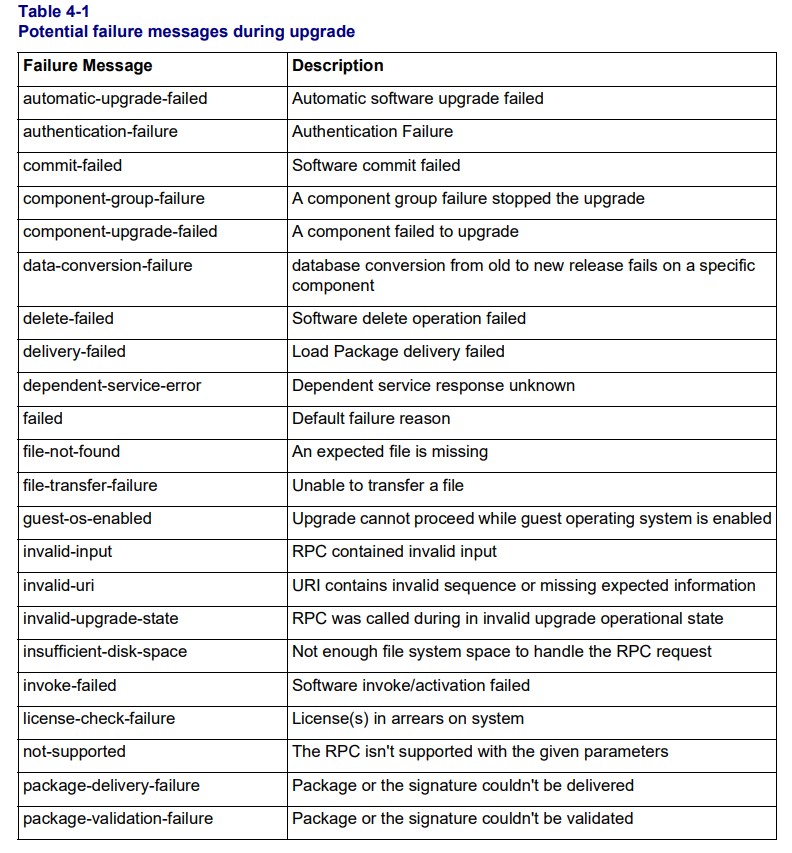
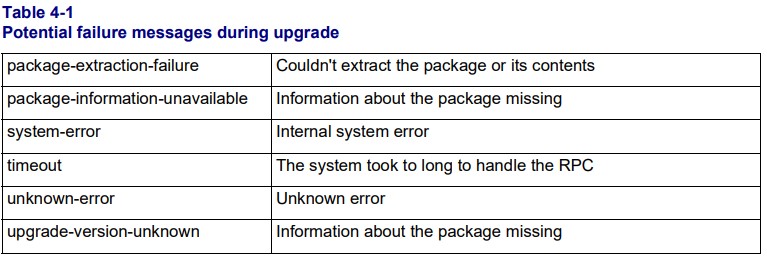 Step 3:
 Using the failure message, and following
the specific Software Upgrade Procedure - Support Procedure, collect the logs and then follow the recommended steps there. Confirm whether the upgrade was a single or multi-step upgrade.
retrieve-logs slots "ALL" mode full
Step 4: Confirm what other alarms are present with "show active-alarms".
- If any Circuit Pack Fail, Hardware Subsystem Fail, or Software Subsystem Fail is active against either CTM the upgrade cannot proceed. Follow the corresponding procedures for these alarms before continuing.
Step 5: Confirm whether any of the CTMs have an upgrade-failed state using the following command. Until the upgrade-fail is resolved on the CTM/s the upgrade cannot proceed.
show software component <41|42>Step 6: Confirm what the current state of the upgrade is via "show software". Confirm the following information from the output of the command.
- upgrade-operational-state
- operation-info last-operation
- id (slot number)
Step 7: If performing a upgrade against a shelf, based on the last-operation data collected in Step 6, re-initiate that last-operation. There is an option to re-initiate the entire upgrade process via "software-install" but this will retry the entire process from the beginning.
- If Load-Failed, re-initiate a software-load
- Check the last-operation result details to confirm if the delivery failed.
- If so, confirm IP reachability to release server (ping, SSH, SFTP).
- If confirmed reachable, re-initiate software-deliver, and then proceed with the remaining steps of the upgrade.
- If Activate-Failed, re-initiate a software-activate using the command below.
- If Commit-Failed, re-initiate a software-commit using the command below.
Step 8: If performing a One-Step Upgrade, any of the above three recovery methods will continue the remaining One-Step upgrade stages.
As an example, if a software-load is run after One-Step Upgrade Failure at the software-load stage, the Activate and Commit phases of the upgrade will follow automatically.
Step 9: If performing a Multi-Step Upgrade, complete the remaining steps of the documented upgrade procedure.
Sample Recovery Commands
software-deliver uri "scp://user:pass@1.2.3.4/RLS/RLS-02.05.00.0907.tgz"
software-load version RLS-02.05.00.0907
OR
software-load uri "scp://user:pass@1.2.3.4/RLS/RLS-02.05.00.0907.tgz"
software-activate [enter]
software-commit [enter] |